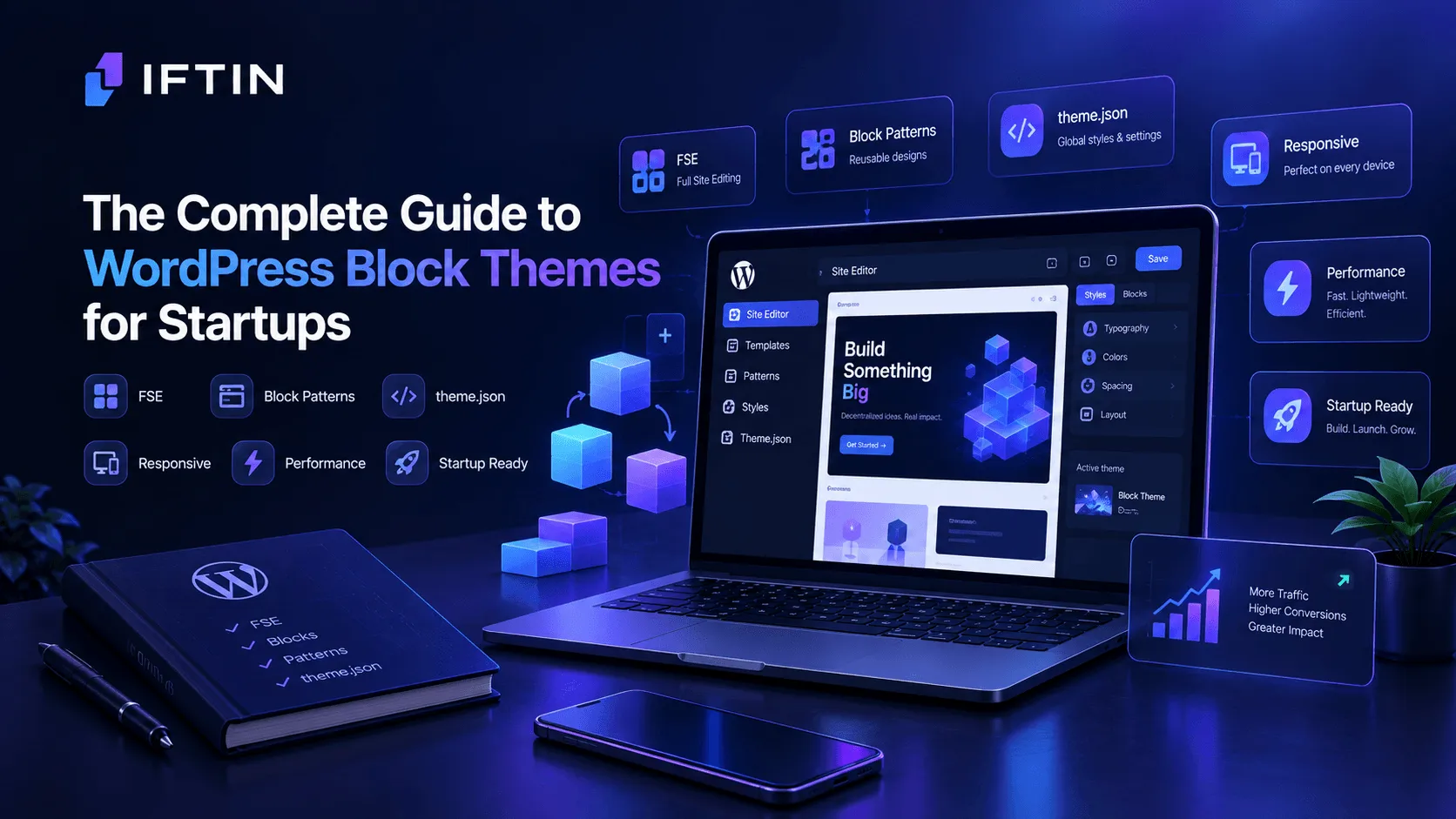
The way WordPress themes work has changed fundamentally. Most startup teams haven’t caught up with what that change actually means for how they build and maintain their websites.
The classic WordPress model — a theme that controls some things, a page builder that controls other things, a collection of plugins filling in the gaps, and a Customizer panel for global settings — is still what most tutorials describe and most agencies still build. It works, in the sense that websites built this way go live and function. But it accumulates technical debt from day one, makes version control nearly impossible, and creates maintenance problems that get worse the longer the site runs.
Block themes work differently. Understanding how and why is the difference between building a startup website that’s easy to maintain and building one that quietly becomes a liability.
What a Block Theme Actually Is
A block theme is a WordPress theme where every part of the site — not just the content area, but the header, footer, templates, and global design settings — is built with blocks and stored in files.
This is a meaningful departure from how classic themes work. In a classic theme, the header might be a PHP file, the footer another, the sidebar a widget area managed through a separate admin panel, and the page layout controlled by a page builder that stores its data in the WordPress database. Design decisions are distributed across multiple systems, stored in multiple places, and readable by none of them without running the site.
In a block theme, the design is in a directory:
your-theme/
├── templates/
│   ├── index.html
│   ├── single.html
│   ├── page.html
│   └── 404.html
├── parts/
│   ├── header.html
│   └── footer.html
├── patterns/
│   └── hero-section.php
├── styles/
│   └── dark-mode.json
├── theme.json
└── style.css
Everything that defines how the site looks is in that directory. You can read it, version it, deploy it, and understand it without running WordPress.
The Design System: theme.json
The file that makes block themes work as a coherent system is theme.json. This is where your entire design system lives — colors, typography, spacing, layout constraints — defined once and applied everywhere.
{
  "settings": {
    "color": {
      "palette": [
        { "slug": "primary", "color": "#0A0101", "name": "Deep Black" },
        { "slug": "accent", "color": "#8C042E", "name": "Crimson" },
        { "slug": "text", "color": "#D6D6D6", "name": "Platinum" }
      ]
    },
    "typography": {
      "fontFamilies": [
        {
          "slug": "body",
          "fontFamily": "Inter, system-ui, sans-serif",
          "name": "Inter"
        },
        {
          "slug": "heading",
          "fontFamily": "'Plus Jakarta Sans', system-ui, sans-serif",
          "name": "Plus Jakarta Sans"
        }
      ],
      "fontSizes": [
        { "slug": "small", "size": "0.875rem", "name": "Small" },
        { "slug": "medium", "size": "1rem", "name": "Medium" },
        { "slug": "large", "size": "clamp(1.25rem, 2vw, 1.5rem)", "name": "Large" },
        { "slug": "display", "size": "clamp(2.5rem, 5vw, 4.5rem)", "name": "Display" }
      ]
    },
    "layout": {
      "contentSize": "50rem",
      "wideSize": "80rem"
    }
  }
}
Define these values once. WordPress generates CSS custom properties from them automatically — var(--wp--preset--color--accent), var(--wp--preset--font-size--display) — and makes them available everywhere in the editor and in your template files. When the brand evolves, you update one file and every template, pattern, and page that references those variables updates automatically.
This is the design system behavior that startups usually get by building a custom CSS framework or maintaining a Figma token library manually synced to code. Block themes give you the infrastructure for it out of the box.
Templates: The Page Layout Layer
Templates define what each page type looks like. For a startup website, you typically need a handful:
index.html— the fallback for any page that doesn’t have a more specific templatepage.html— standard pages: About, Contact, Servicessingle.html— individual blog postsfront-page.html— the homepage404.html— not found pagesearch.html— search results
The architecture that works best separates the template file from the design:
templates/page.html — one line:
<!-- wp:pattern {"slug":"your-theme/template-page"} /-->
patterns/template-page.php — the actual layout:
<?php
/**
 * Title: Default Page
 * Slug: your-theme/template-page
 * Template Types: page
 * Inserter: false
 */
?>
<!-- wp:template-part {"slug":"header","tagName":"header"} /-->
<!-- wp:group {"tagName":"main","layout":{"type":"constrained"}} -->
<main class="wp-block-group">
    <!-- wp:post-content {"layout":{"type":"constrained"}} /-->
</main>
<!-- /wp:group -->
<!-- wp:template-part {"slug":"footer","tagName":"footer"} /-->
Why this separation? Because template files are loaded by WordPress as the layout definition for a page type. Keeping them minimal and delegating design to patterns keeps the architecture clean — templates define structure, patterns define appearance.
This approach is how the best open-source block themes are built. It’s more files than the naive approach, but significantly easier to maintain and reason about.
Template Parts: Reusable Components
Template parts are the reusable building blocks that multiple templates share. Every block theme needs at minimum a header and a footer. Most startup websites need a few more:
parts/header.html — Logo, navigation, CTA button. The header is one of the highest-leverage design elements on the site. A startup header typically needs the company name or logo, primary navigation, and one CTA button — a “Get Started,” “Launch App,” or “Book a Demo” depending on the product. Everything else is noise.
parts/footer.html — Links, copyright, secondary navigation. Footers do quiet work. They’re where visitors go when they haven’t found what they need from the main navigation. A good startup footer has: the company name and one-line description, links to all major pages, links to community channels and social accounts, legal links, and copyright.
parts/post-meta.html — For blog posts: author, date, categories. Separated into its own part so it can be reused across single post templates without duplicating markup.
Beyond these, the parts you build depend on the startup’s specific content. A documentation section needs a docs-sidebar.html part. A product with a complex blog structure might need a post-author-box.html part. Build parts for things that appear in multiple places and change as a unit.
Patterns: The Design Library
Patterns are pre-built block layouts — a hero section, a features grid, a pricing table, a testimonial block — that can be inserted into any page from the block editor.
For a startup, a well-built pattern library means that creating a new landing page is a matter of assembling patterns in the editor rather than starting from scratch or commissioning custom design work every time. The consistency is automatic because every pattern draws from the same design system defined in theme.json.
A practical startup pattern library covers:
Heroes — at minimum a split-screen hero (headline and CTA left, product visual right) and a centered hero for announcement-style pages.
Feature sections — a three-column features grid and a two-column feature detail layout cover most cases.
Social proof — a logos bar for partner or client logos and a testimonials block.
CTAs — a full-width CTA banner for use at the bottom of long pages.
Navigation — a documentation navigation sidebar if the site includes a docs section.
Patterns are registered in PHP files in the patterns/ directory. The registration header controls where they appear in the editor:
<?php
/**
 * Title: Split Screen Hero
 * Slug: your-theme/hero-split-screen
 * Categories: your-theme/heroes
 * Keywords: hero, headline, cta
 * Viewport Width: 1440
 */
?>
<!-- block markup here -->
The Categories field determines where the pattern appears in the pattern inserter. Build a pattern category structure that matches how your team thinks about page sections, not how WordPress organizes things by default.
Style Variations: Multiple Design Modes
Block themes support style variations — alternative design configurations that share the same template and pattern structure but apply different colors, typography, and spacing.
For a startup, style variations solve a real problem: different pages or campaigns need different visual treatment, but maintaining separate themes or child themes for each variant creates unsustainable maintenance overhead.
A dark-mode default with a light-mode variation handles the most common case. A startup that operates across different product lines can use style variations to create distinct visual identities for each line without duplicating templates.
Style variations live in the styles/ directory as JSON files that follow the same structure as theme.json:
{
  "version": 3,
  "title": "Light Mode",
  "settings": {
    "color": {
      "palette": [
        { "slug": "primary", "color": "#FFFFFF", "name": "White" },
        { "slug": "text", "color": "#0A0101", "name": "Near Black" }
      ]
    }
  },
  "styles": {
    "color": {
      "background": "var(--wp--preset--color--primary)",
      "text": "var(--wp--preset--color--text)"
    }
  }
}
The variation overrides the values from theme.json without changing the template structure. Every template and pattern that references the color variables through CSS custom properties automatically reflects the active variation.
The Full Site Editor
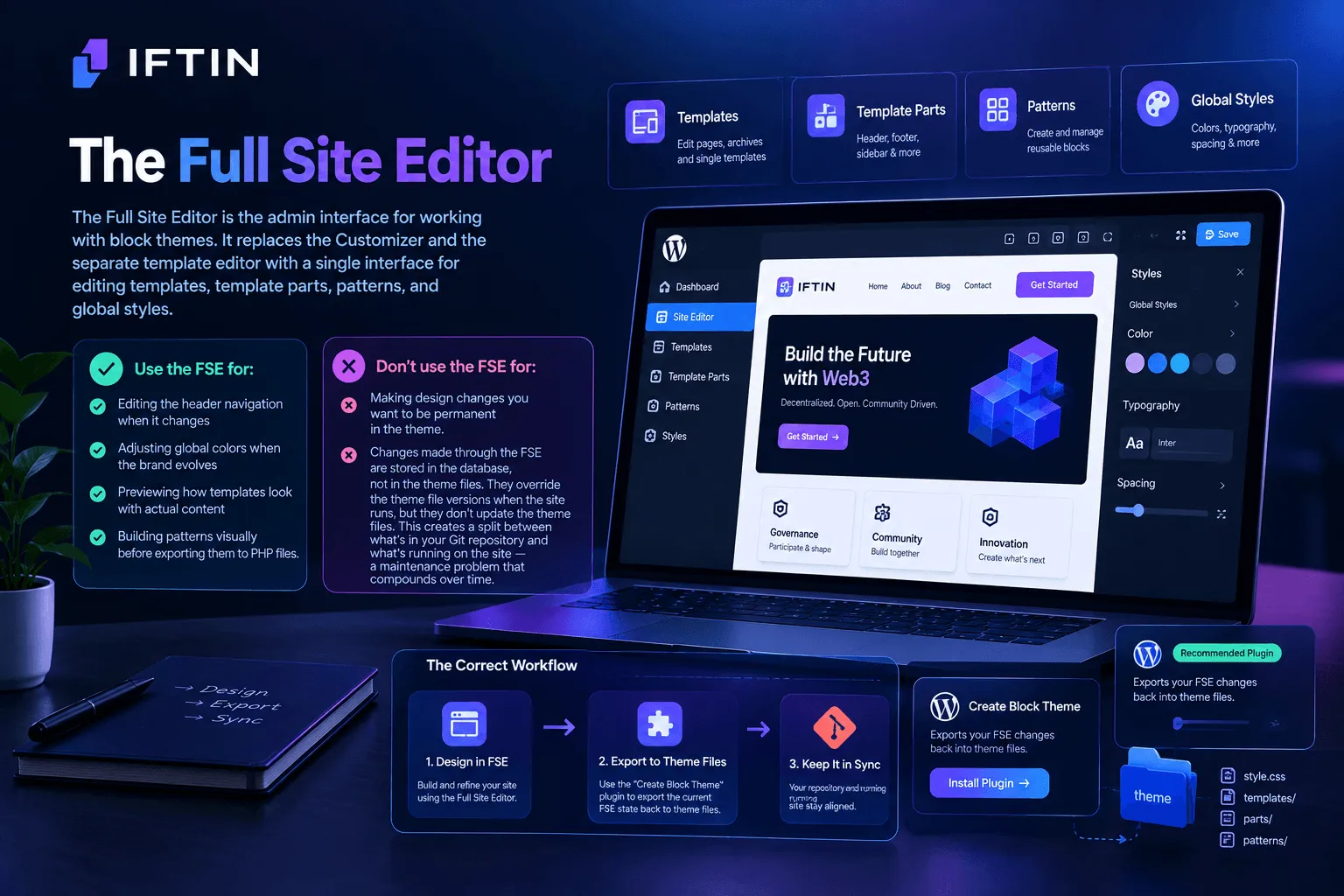
The Full Site Editor is the admin interface for working with block themes. It replaces the Customizer and the separate template editor that existed in earlier WordPress versions with a single interface for editing templates, template parts, patterns, and global styles.
For a startup team, understanding what the Full Site Editor is for — and what it isn’t for — matters:
Use the FSE for: Editing the header navigation when it changes, adjusting global colors when the brand evolves, previewing how templates look with actual content, and building patterns visually before exporting them to PHP files.
Don’t use the FSE for: Making design changes you want to be permanent in the theme. Changes made through the FSE are stored in the database, not in the theme files. They override the theme file versions when the site runs, but they don’t update the theme files. This creates a split between what’s in your Git repository and what’s running on the site — a maintenance problem that compounds over time.
The correct workflow: design in the FSE, then export to theme files. WordPress includes a “Create Block Theme” plugin specifically for this — it exports the current FSE state back into theme files, keeping the repository and the running site in sync.
Performance Characteristics
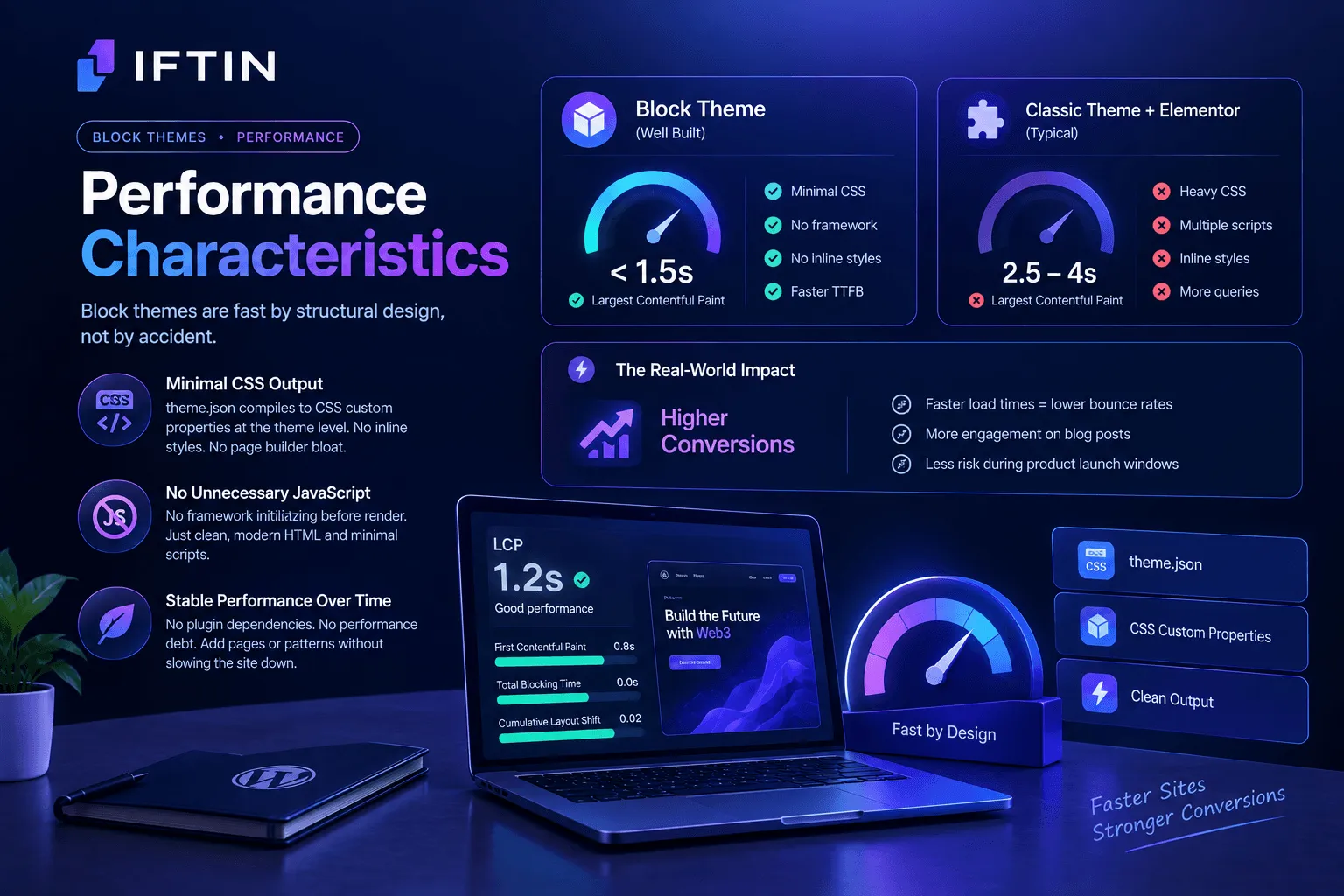
Block themes are fast by structural design, not by accident.
The CSS output is minimal. theme.json compiles to CSS custom properties at the theme level. There’s no page builder generating inline styles for every element. There’s no JavaScript framework initializing before the page can render.
The practical numbers: a well-built block theme typically achieves Largest Contentful Paint under 1.5 seconds on standard hosting without caching configuration. The equivalent classic theme with Elementor typically achieves 2.5 to 4 seconds before optimization.
For startups, this performance gap is directly relevant to conversion. Homepage bounce rates are measurable in seconds. Blog post engagement drops predictably with load time. A landing page for a product launch that loses visitors to slow loading during the announcement window is a recoverable but painful failure.
The performance maintenance characteristic is equally important: block themes don’t accumulate performance debt over time the way plugin-dependent classic themes do. Adding a new page or pattern doesn’t add a new stylesheet. Updating the header doesn’t introduce new JavaScript. The performance profile at two years is close to the performance profile at launch.
Version Control and Deployment
The version control story for block themes is straightforward: the design is files, files go in Git.
git add themes/your-theme/
git commit -m "Update hero pattern for product launch"
git push origin staging
# Review → merge → deploy
Every design decision has a commit. Every change is reviewable. Rolling back a template that broke something is a git revert, not a database restore. Staging environments that accurately mirror production are trivial to maintain because the design isn’t in the database.
For startup teams running engineering workflows with pull requests, code review, and deployment pipelines, this is not a minor convenience. It’s the difference between the website being a first-class part of the engineering workflow and being a separate system that nobody wants to touch because changes are unpredictable.
When Block Themes Are the Right Choice
Block themes are the right choice for startups when:
The team runs version-controlled engineering workflows and wants the website in them. Performance is a meaningful concern and the team doesn’t want to optimize around a page builder’s overhead. The website is expected to grow and evolve significantly — more pages, more content types, a changing brand — over the next two or three years. The team values infrastructure they control over tooling convenience.
Block themes are the wrong choice when the team needs something live in two days and the fastest path is a page builder they know well, or when a specific WooCommerce integration requirement has better support in the classic theme ecosystem.
For most startups building a primary website intended to last, block themes are the more defensible choice. The upfront learning cost is real. The maintenance savings compound over time.
The Bottom Line
Block themes are not a new version of WordPress themes with a fresh coat of paint. They’re a different architecture — one where the design lives in files, the design system is explicit, the editor is consistent across every part of the site, and the performance characteristics are structural rather than optimized.
For startups that care about building infrastructure they can maintain and understand, block themes are the natural choice. The learning curve is front-loaded and then done. The design debt doesn’t accumulate. The repository tells the complete story of what the site is and how it got there.
The startups that will look back on their website infrastructure choices in three years and feel good about them are the ones that made decisions based on long-term maintainability rather than short-term convenience. Block themes are what that decision looks like for WordPress.
Want to go deeper? Read our guides on WordPress FSE vs Classic Themes for Web3 Startups, How to Build a Modern Web3 Startup Website with WordPress Block Themes, and Why Block Themes Are Perfect for Web3 Landing Pages.